Create Your First Tour
Use this path: Dashboard -> New Tour.
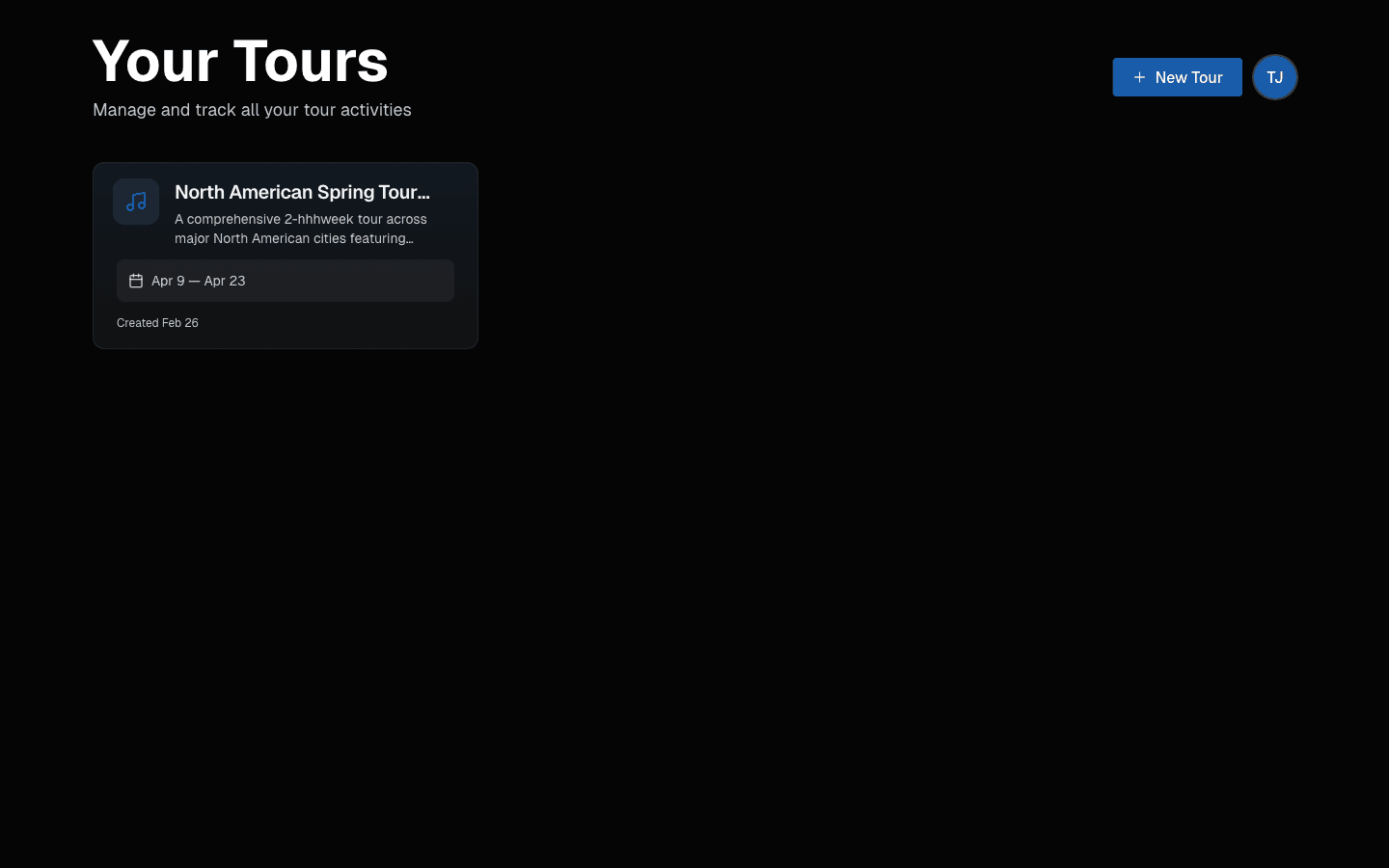 Click New Tour from your dashboard.
Step 1: Tour Details
- Enter your tour name.
- Use a clear naming format, for example
Spring Run 2026. - Select Next: Select Dates.
Step 2: Tour Dates
- Pick Start Date and End Date.
- End date must be on/after start date.
- TourPro shows total duration before you continue.
Step 3: Review and Create
- Confirm name and dates.
- Select Create Tour & Continue.
TourPro will take you into schedule onboarding.
What You See on the Main Dashboard After Setup
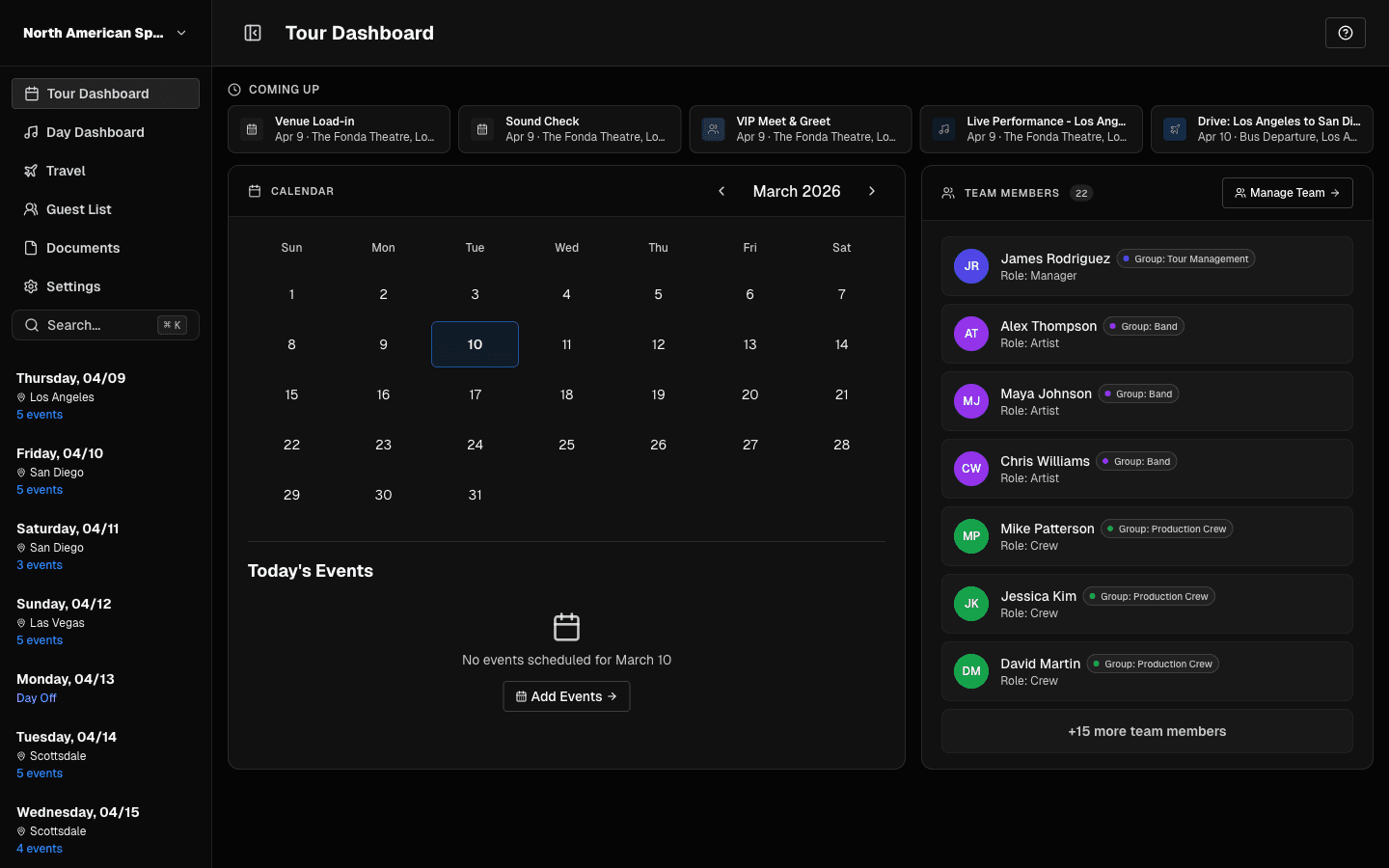 Use quick cards to jump into key workflows.
Those cards are your fastest path back into core workflows:
- Schedule
- Shows
- Travel
- Team
Schedule Onboarding Right After Creation
For each date, mark the day as:
- Show Day
- Travel Day
- Day Off
Then either:
- Save & Continue, or
- Skip for Now and configure later.
Best Practice
Configure your first 3-5 important dates before skipping the rest. That gives your team useful structure immediately.
Last updated on