Documents Workflow
Open documents from any tour via Documents in the tour header or sidebar.
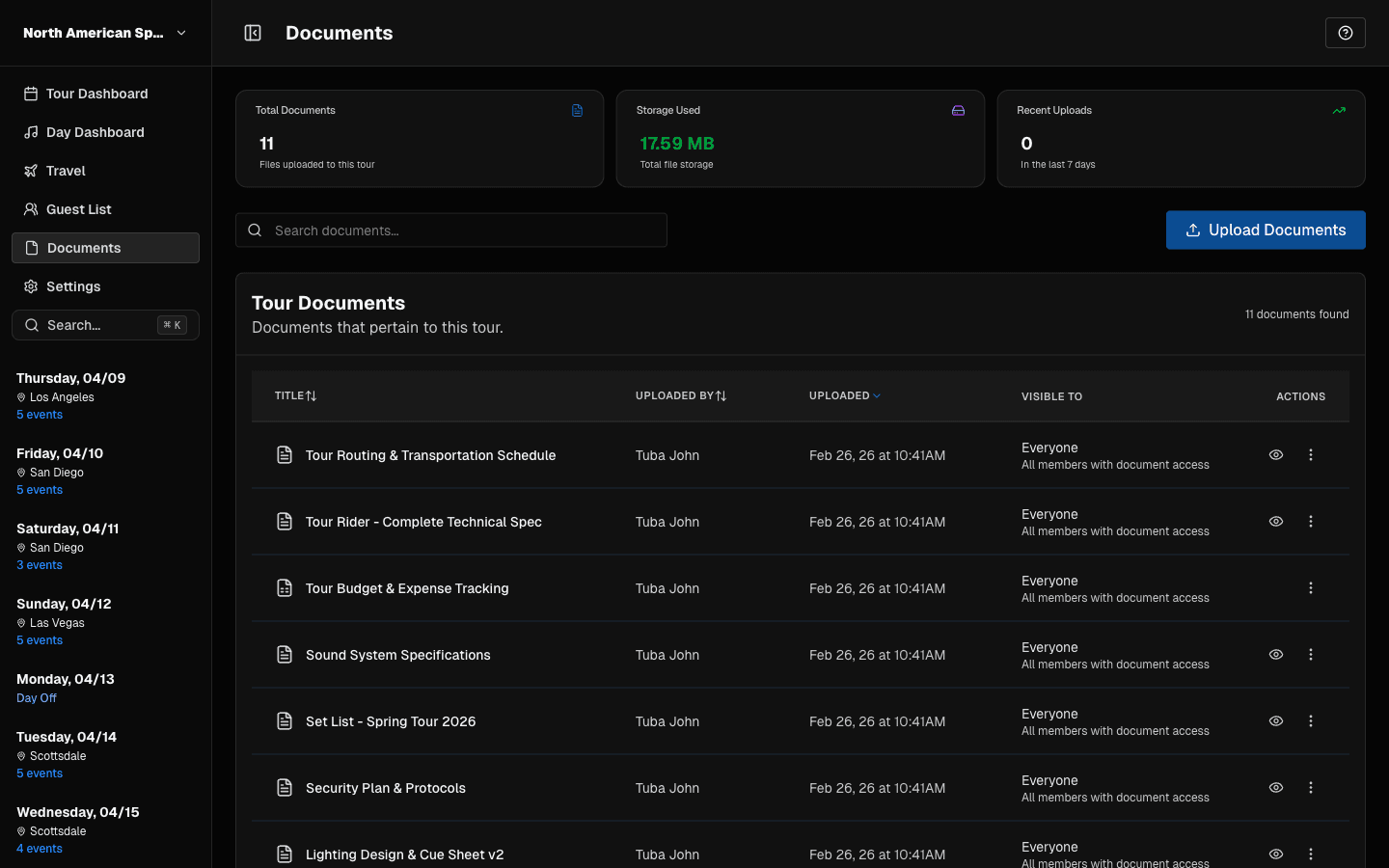 Documents dashboard: upload, search, preview, and manage files.
What You Can Do
- upload files (button or drag/drop)
- search documents
- preview supported files
- download originals
- rename titles
- delete files (if permitted)
- restrict a file to specific people or groups — see Document Visibility
Attach a Document to a Date
Use Assign to Dates in a document’s row menu to show that file on one or more Day Dashboards. This action requires the same Edit documents permission as Set Visibility. The file’s visibility settings still apply, so assigning dates does not change who can view it. Mobile users can view tour documents from the Documents screen; day assignment appears on the web Day Dashboard for now.
Permission-Based Visibility
You may be missing actions if your role does not include:
can_upload_documentscan_edit_documentscan_delete_documentscan_view_documents
File Organization Tips
- use clear filenames before upload
- avoid duplicate uploads for minor name changes
- verify preview for operationally critical files
Last updated on