
TourPro is the modern tour management platform built for touring professionals: tour managers, production managers, road crews, and artists who need a single source of truth for every detail on the road.
Whether you're managing a 50-city arena run or a regional club tour, TourPro replaces scattered spreadsheets, group chats, and email chains with one streamlined workspace. This guide walks through the current web and mobile workflow.
1. Create Your Account
Head to tourpro.app and click Log In. Sign in with your email or Google account. Once you're in, you'll land on your dashboard.
What you'll see on your dashboard:
- Active tours so you can jump straight into what's live
- Quick actions for schedule, travel, team, and documents
- Recent activity so everyone stays aligned on changes
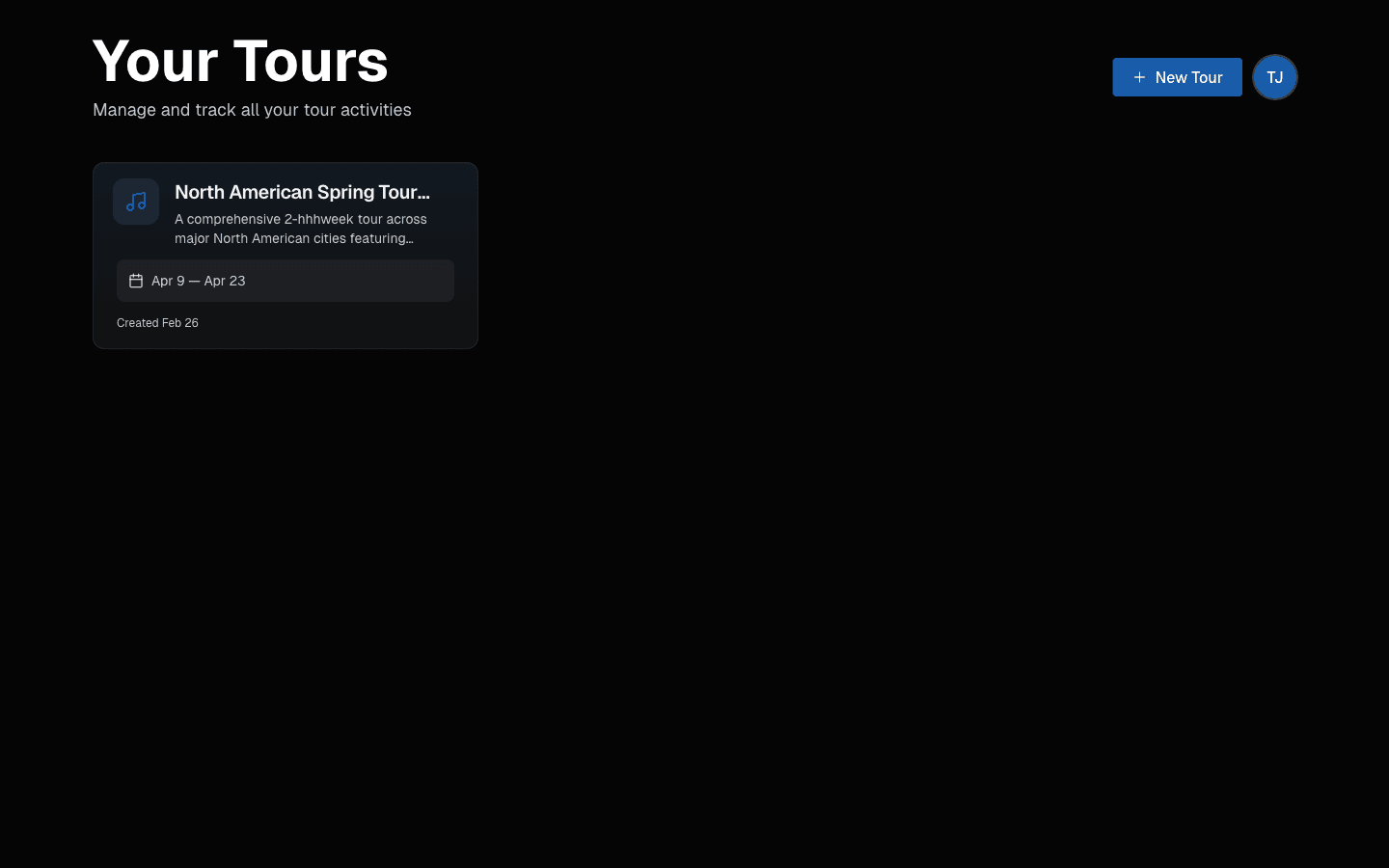
2. Create Your First Tour
Click New Tour. Add your tour name (for example, Summer 2026 North American Run), set dates, and choose the timezone.
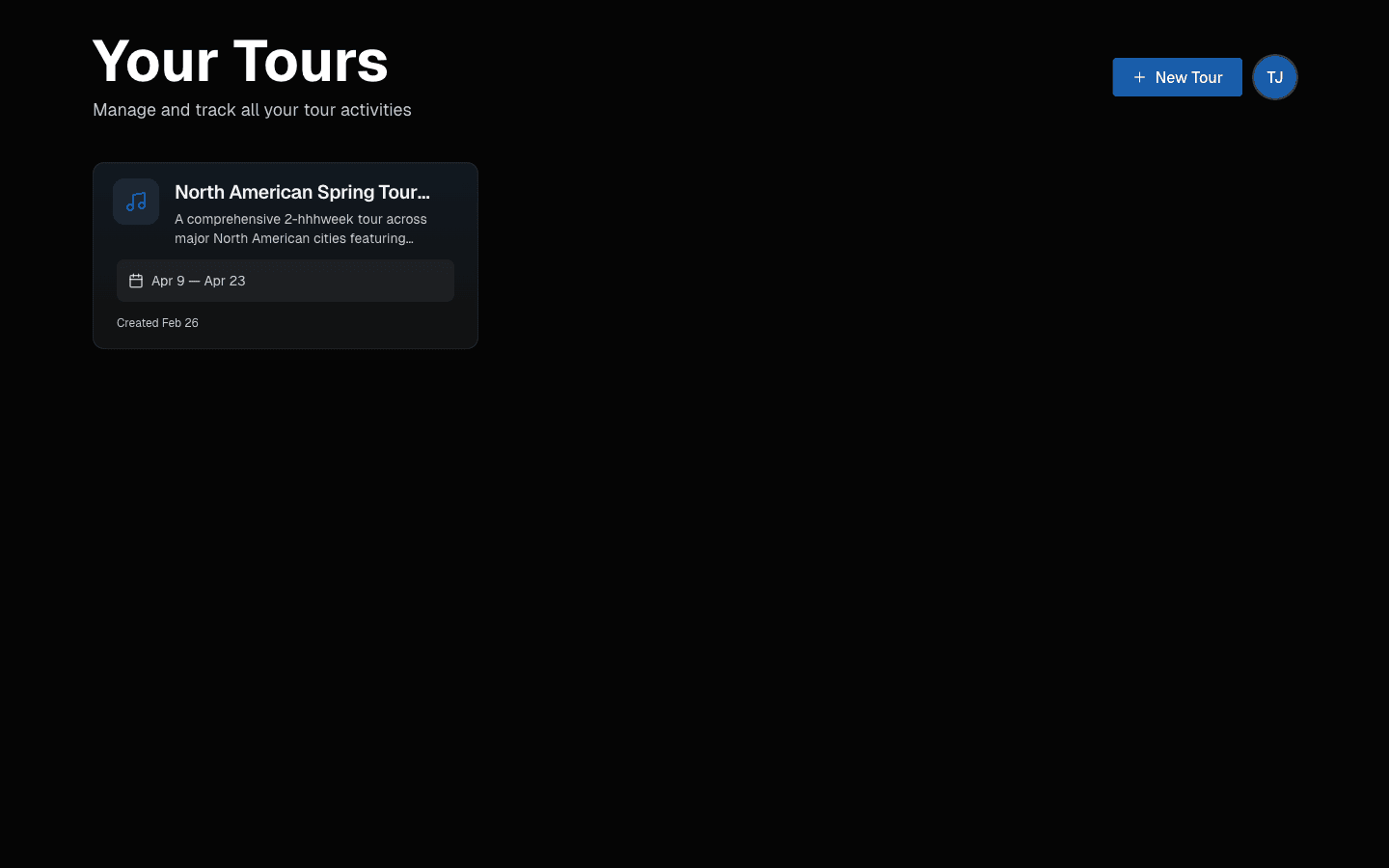
Tour settings you'll want to configure:
- Tour name and dates
- Default currency
- Visibility and permissions
3. Build Your Schedule
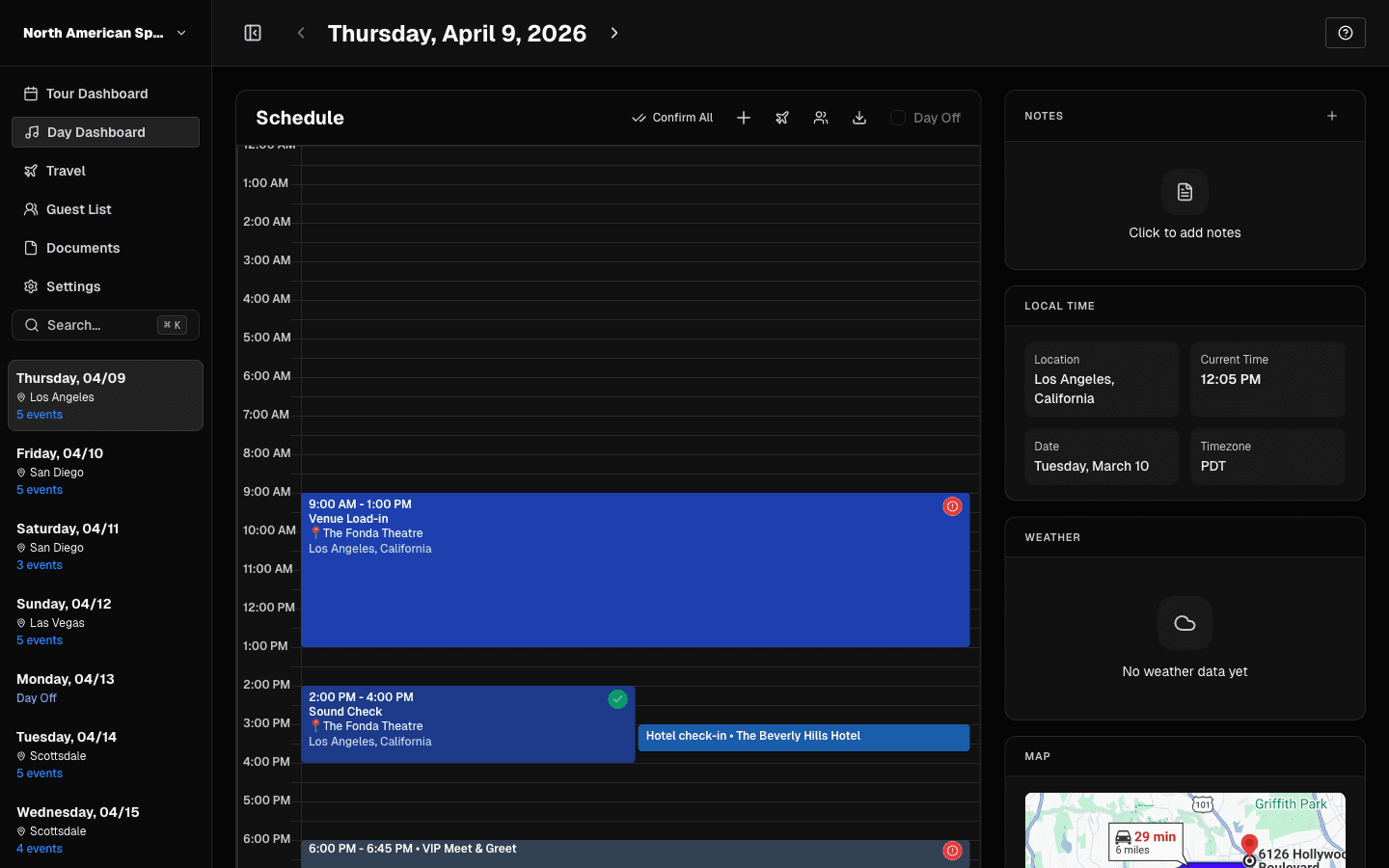
The Schedule section is your operational command center.
Show Days
Click Add Day and select Show Day. Fill in:
- Venue details
- City and state
- Load-in, sound check, doors, and showtime
- Optional capacity and ticket counts
Travel Days
Use Travel Day for city moves and routing.
Days Off
Track rest days to keep crew pacing realistic across long runs.
Drag and Drop
Need to reroute? Reorder days directly in schedule management and keep logistics in sync.
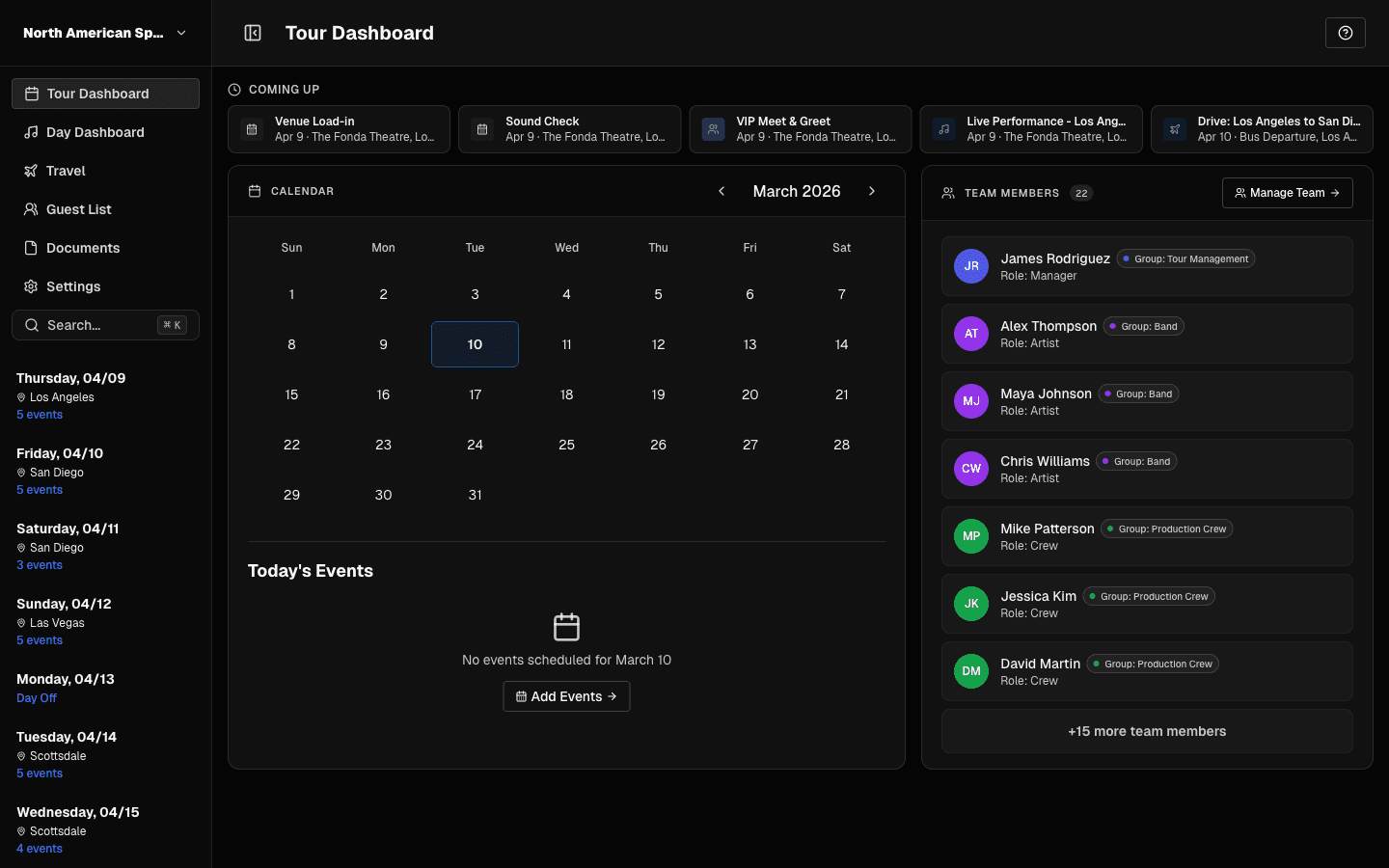
4. Add Hotels and Travel
From any day, add logistics:
Hotels
- Property name/address
- Confirmation numbers
- Check-in and check-out times
- Room block details
Flights
- Airline and flight number
- Departure and arrival airports
- Times and terminal details
- Passenger assignments
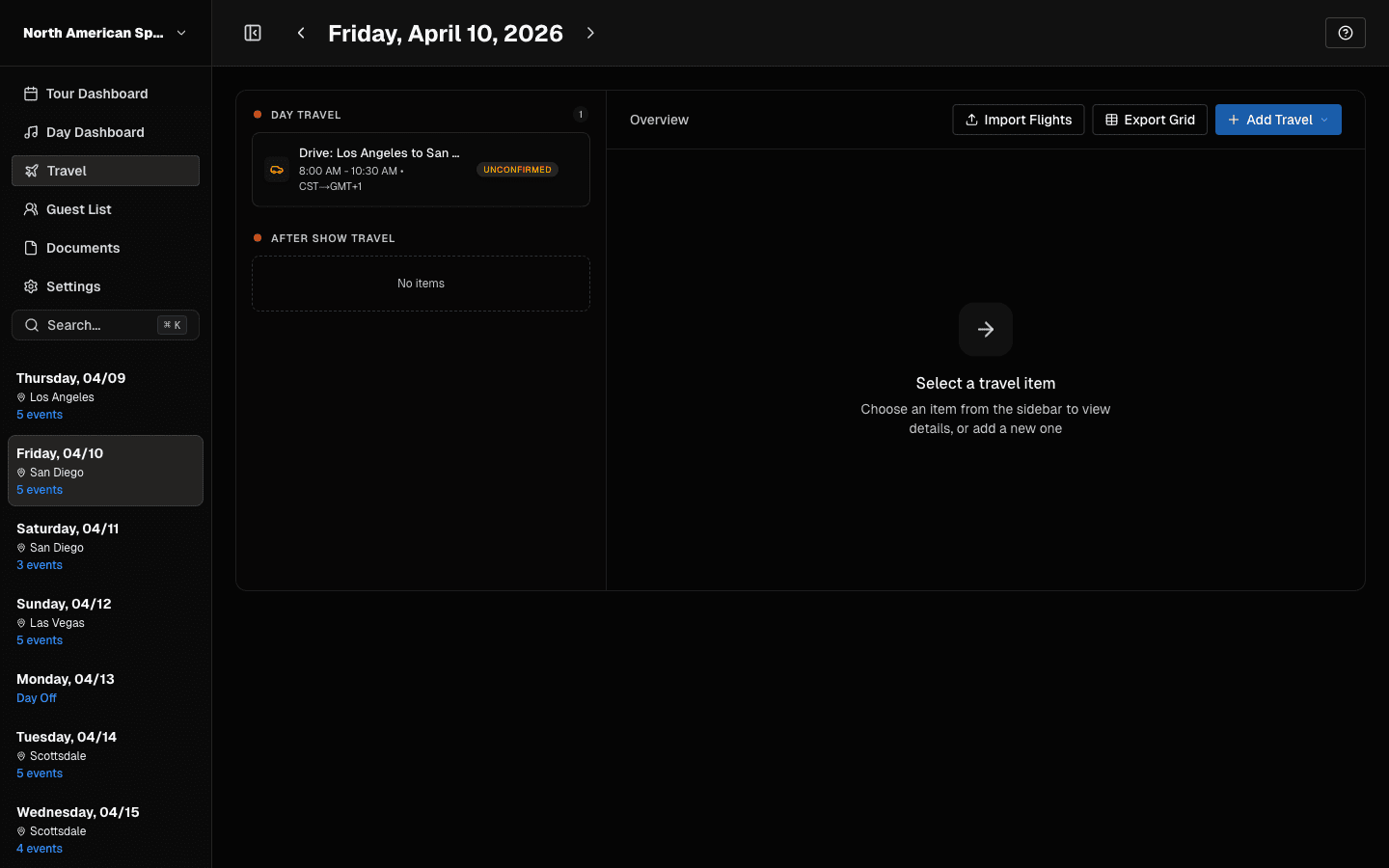
Ground Transportation
- Bus calls, vans, and cars
- Pickup times and locations
- Driver contact information
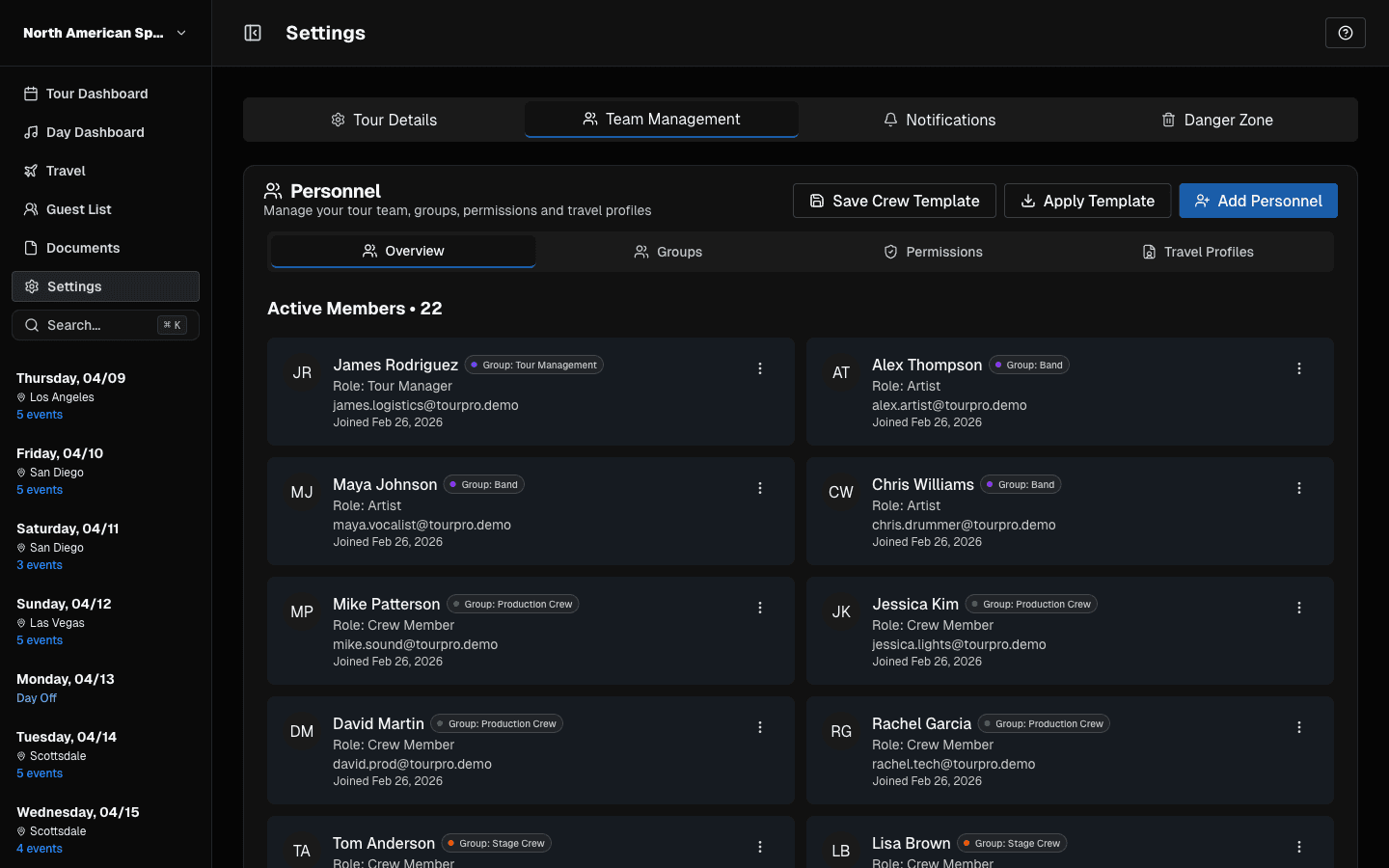
5. Invite and Organize Your Team
Go to Settings -> Team Management.
Add members
Click Invite Team Member and send an invite by email.
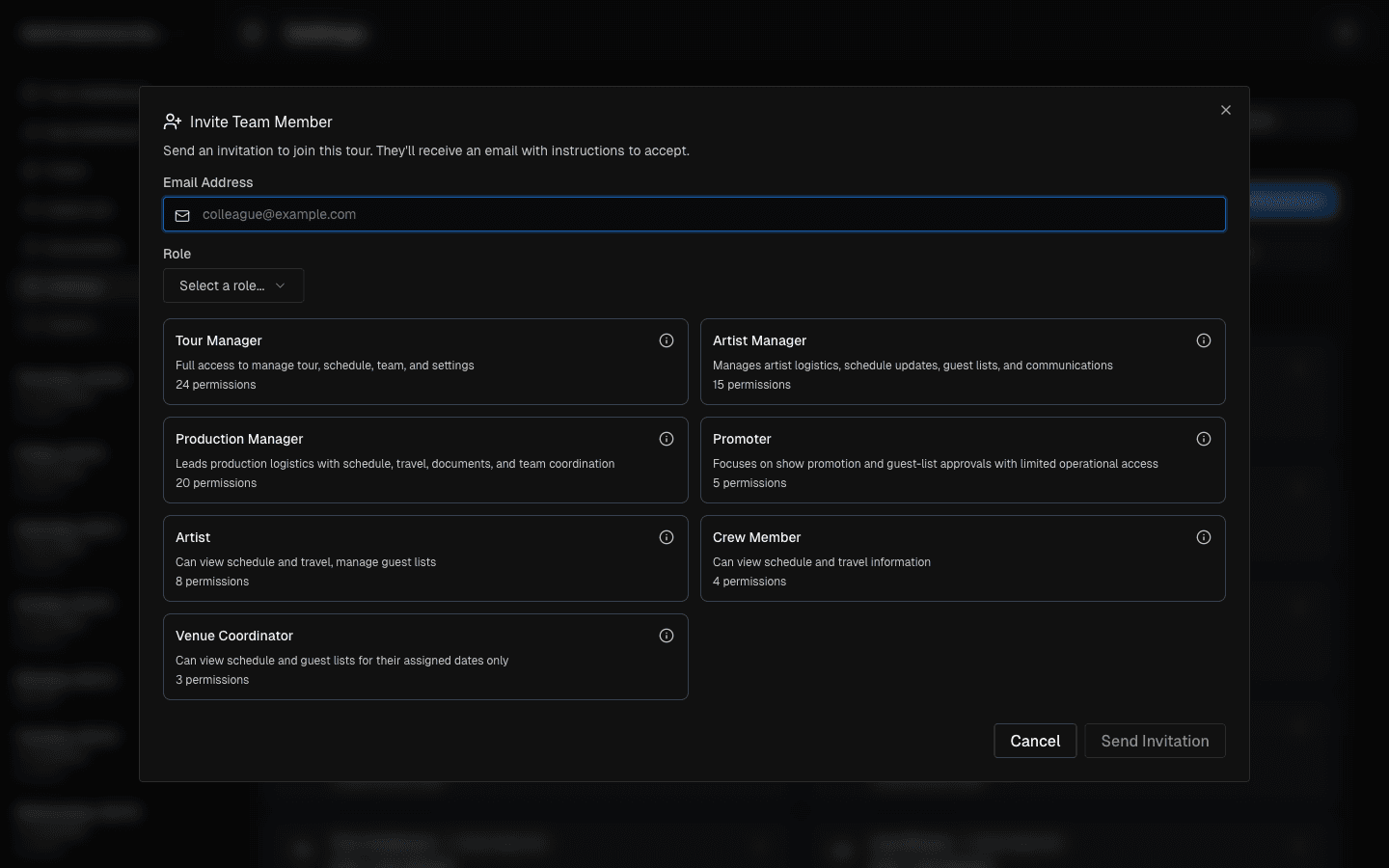
Roles and permissions
- Admin: full access
- Manager: edits schedule and logistics
- Member: controlled access based on role
6. Generate Day Sheets and Exports
Day sheets give your team one clear source for daily execution:
- Venue and schedule
- Hotels and travel
- Contacts and notes
- Crew call context
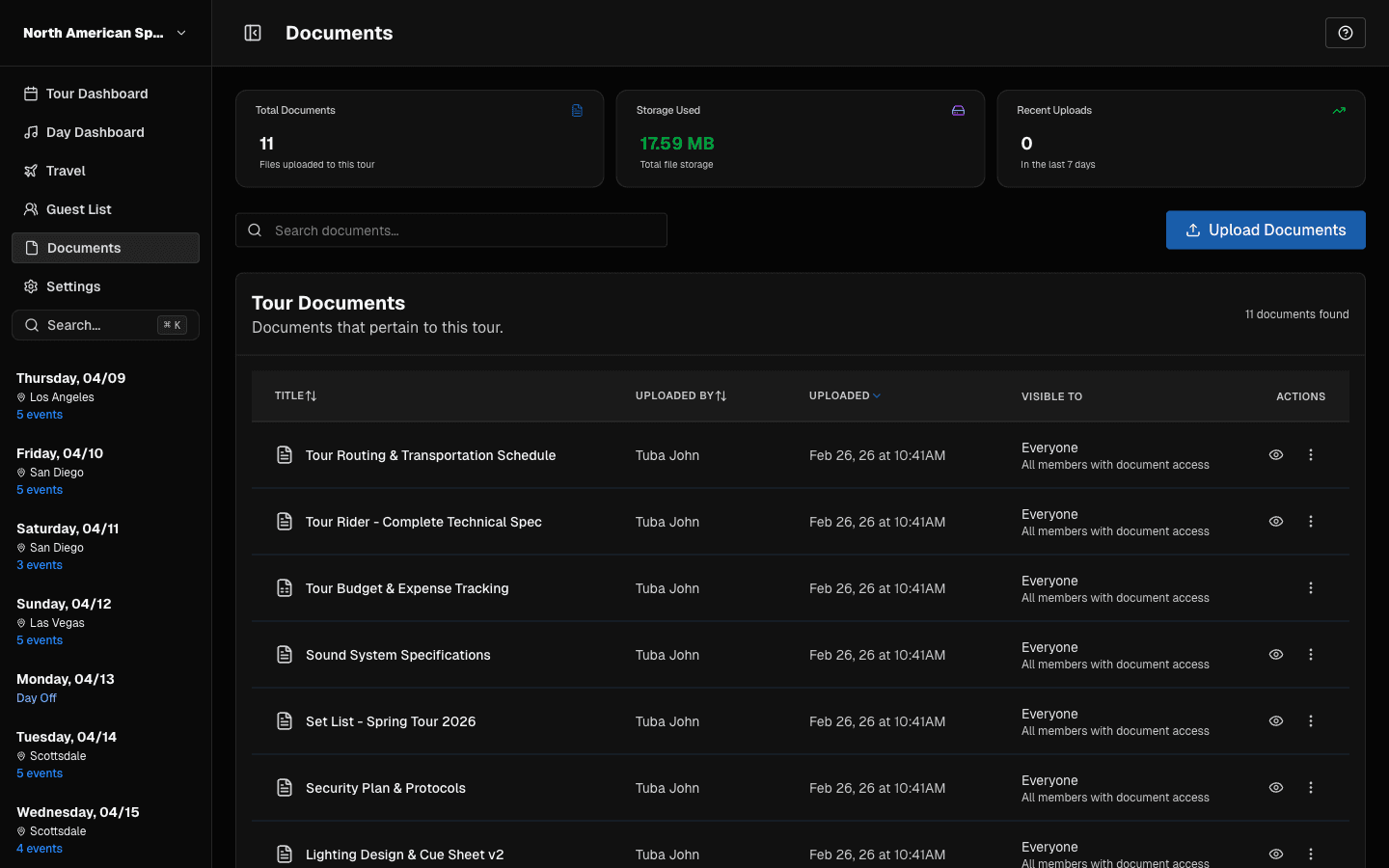
Use Export to generate and share documents quickly.
7. Access Across Web, Desktop, and Mobile
Web App
Full feature set at tourpro.app.
Desktop App
Native desktop builds are available for macOS and Windows.
Mobile App
TourPro mobile keeps day-of details in your pocket. iOS is available now, and Android rollout is in progress.
8. Documentation for Web and Mobile
Use these docs for the latest UI flows:
9. Tour Management Tips
Keep your source of truth current
Update TourPro as soon as plans change.
Share day sheets every day
Publish the latest version each morning or the night before.
Set team access early
Invite and permission your team before tour week.
Getting Help
If you get stuck, open the Help Center or contact support.
Ready to take the chaos out of touring? Sign up for TourPro and start managing your next tour.